
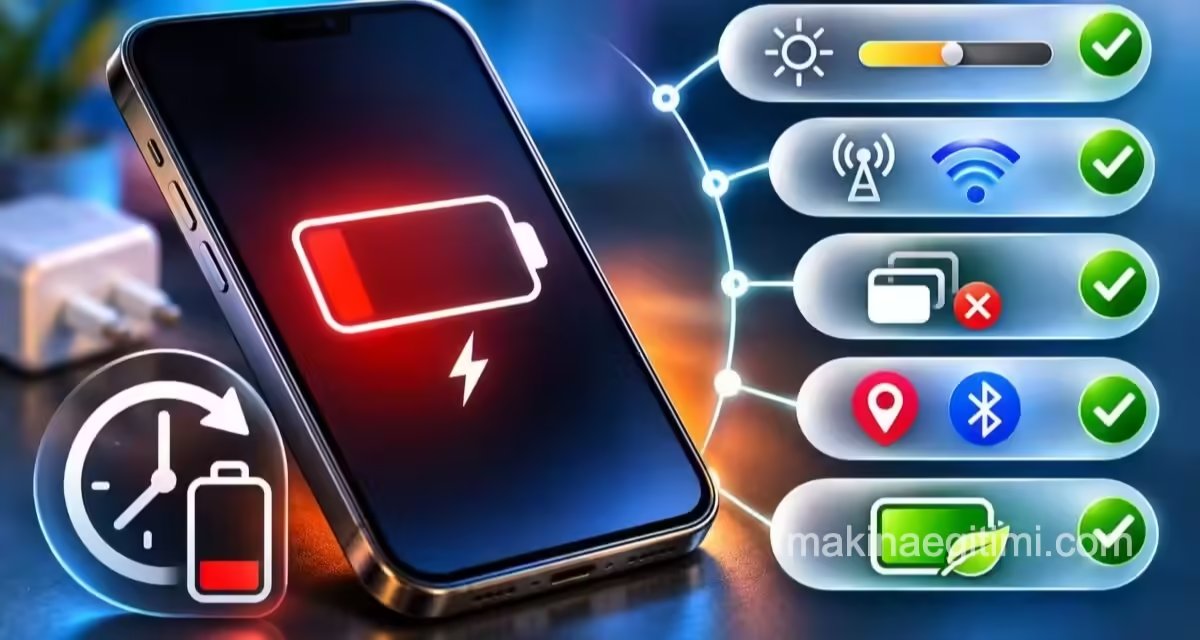
Short answer: The most common reason your phone’s battery drains fast isn’t a worn-out battery — it’s a single app running constantly in the background. Open
Settings > Battery > Battery usage; restrict whichever app shows up above 15% that you never actually opened. It’s only a battery problem if maximum capacity has dropped below 80%, or the phone shuts down on its own between 20–40%.
Your phone used to last until evening. Now it’s down to 20% by the afternoon. The first thought is usually “the battery’s dead, I need a new one” — but in the vast majority of cases, the battery is perfectly fine. The problem is a single app quietly running in the background, or a feature you turned on without realizing it.
The good news is: the device you’re worried is draining fast is already telling you who the culprit is. You just need to know where to look.
In this guide we’ll first identify the culprit, then restrict only that one, and finally measure whether the battery itself is actually worn out.
First, let’s clear this up: if you just updated, wait 2–3 days
If your battery trouble started right after a major system update, it’s probably not a malfunction.
After an update, the phone does the following:
- Rebuilds its search index from scratch
- Re-analyzes faces and objects in your photo gallery
- Downloads AI models
- Re-optimizes all your apps
All of this wears out the processor, and by extension the battery. Apple states plainly on its support pages that this is normal: it usually takes 24–48 hours, and can stretch to a week if you have a large photo archive.
What you should do: Leave the phone connected to Wi-Fi and charging overnight for two nights, update all your apps, then make a judgment. Don’t decide based on the first day’s battery performance.
Note: In 2026, both Google’s April update and Samsung’s One UI 8.5 release caused real battery issues that the manufacturers themselves acknowledged, and both were fixed in later patches. So the “install the update and wait” advice genuinely held true this time.
Step 1: Find the culprit — don’t guess
This is the most important part of the guide. The biggest mistake people make is deleting apps based on guesswork.
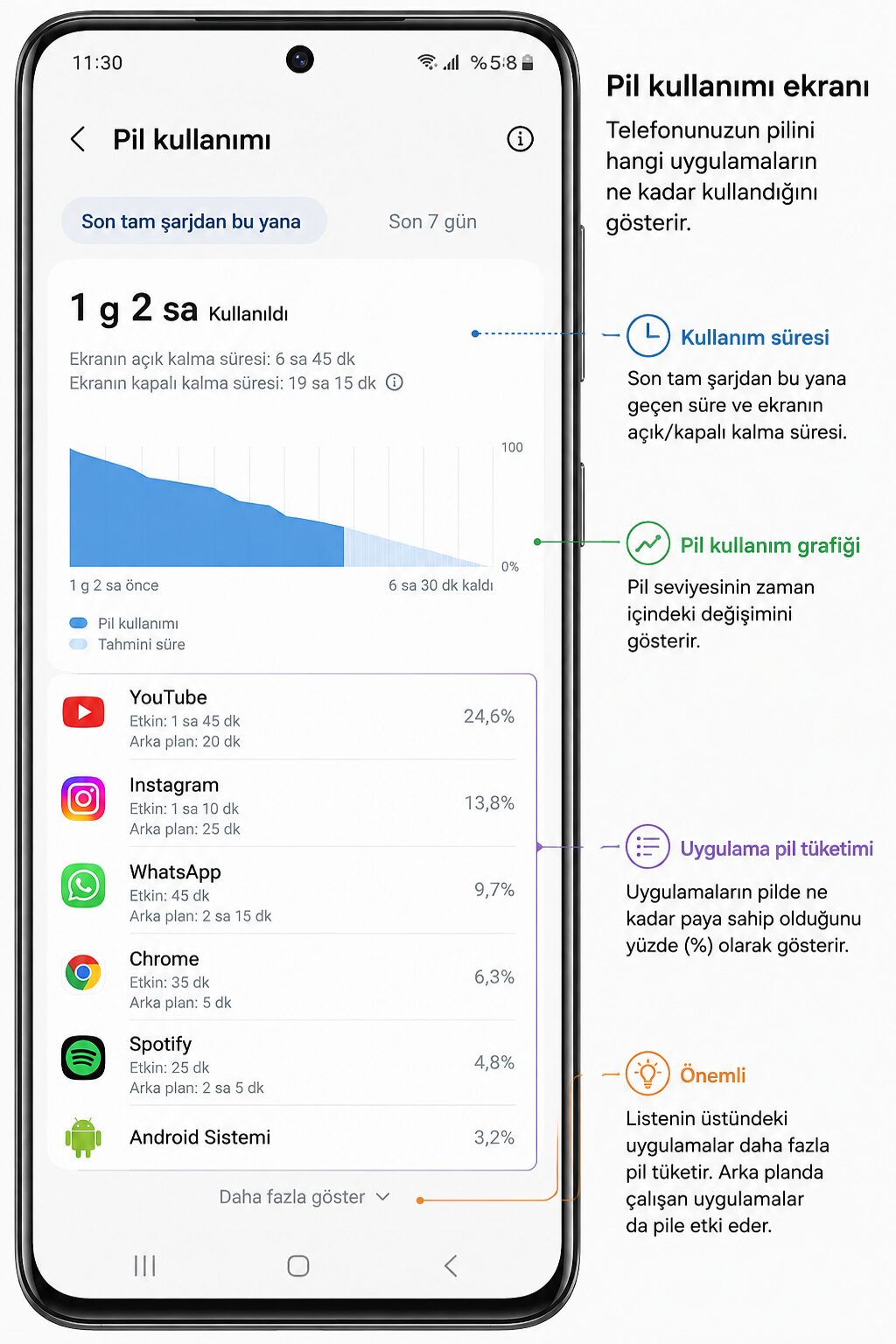
How do you check battery usage on Android?
| Brand | Menu path |
|---|---|
| Pixel / stock Android | Settings > Battery > Battery usage → from the three-dot menu, tap “Show full device usage” |
| Samsung | Settings > Battery > Battery usage |
| Xiaomi / Redmi / Poco | Settings > Battery > Battery usage details |
If you can’t find the menu, type battery usage into the search box in Settings. Menu names change from version to version; the search box doesn’t.
How do you check battery usage on iPhone?
Settings > Battery → scroll down and switch to the “Last 10 Days” tab above the chart. Tapping on an app shows Screen On and Background Activity separately. That’s where the real information is.
How do you read the list?
If your screen tops the list, don’t worry — you’re looking at your phone, that’s normal.
What you should watch out for is: an app showing a high percentage that you never opened. Social media, news, weather, and navigation apps are the classic culprits.
On iPhone in particular, if “Background Activity” is huge but “Screen On” is close to zero, you’ve found the culprit.
Simple rule: If an app with no screen time is above 15%, put it under the microscope.
Step 2: Restrict only that app
The critical point here: don’t restrict everything. Mass restriction means your notifications stop arriving, leaving you with a bigger problem than you started with.
Stock Android: Settings > Apps > [app] > Battery > Restricted
Samsung: Settings > Battery > Background usage limits > Deep sleeping apps → tap the plus icon and add the app.
Xiaomi: Settings > Apps > Manage apps > [app] > Battery saver > Restrict background activity Also, on that same screen, turn off Autostart — that’s the setting that actually makes the difference on Xiaomi devices.
iPhone: Settings > General > Background App Refresh → turn off the culprit app. Instead of turning everything off at once, the “Wi-Fi” option is a good middle ground.
⚠️ Be careful when restricting messaging apps; your notifications may start arriving late. We covered this in a separate article: Why Are WhatsApp Notifications Arriving Late?
Step 3: Turn off features that quietly eat battery
You don’t have to turn all of these off — just whichever ones you don’t actually need.
Always-On Display: Shows the clock even when the screen is off. On Samsung, setting Settings > Lock screen > Always On Display > Tap to show lets you keep the feature while still getting a serious battery gain.
High refresh rate (120 Hz): On Pixel, Settings > Display & touch > Smooth Display. The difference is visible to the eye, but so is the battery cost.
Wi-Fi and Bluetooth scanning: A setting that scans for location even when Bluetooth is off. Settings > Location > Wi-Fi scanning and Bluetooth scanning.
Location permissions: Review which apps have “Always” location access. On iPhone, Settings > Privacy & Security > Location Services. For most apps, “While Using the App” is more than enough.
2026’s new factor: On-device AI features (Gemini, Galaxy AI, HyperOS AI) keep a background service running constantly. Turning off AI features you don’t use is reported to gain 10–18% on Xiaomi devices.
Step 4: Turn on your phone’s own battery protection feature
This setting protects your daily charge and also slows long-term capacity loss:
| Device | Menu path |
|---|---|
| iPhone 15 and later | Settings > Battery > Charging (a charge limit can be set) |
| iPhone 14 and earlier | Settings > Battery > Battery Health & Charging > Optimized Battery Charging |
| Samsung | Settings > Battery > Battery protection |
| Pixel | Settings > Battery > Charging optimization |
Samsung’s “Battery protection” setting is off by default, and almost nobody knows it exists. It’s worth turning on by itself.
An extra option for iPhone 15 and later: Settings > Battery > Power Mode > Adaptive Power. It works much more gently than Low Power Mode; it makes small, barely noticeable adjustments on heavy-use days to try to get you to the end of the day.
Step 5: Is the battery actually worn out? How to measure it
If none of the above worked, it’s time to look at the battery itself.
iPhone: Settings > Battery > Battery Health & Charging → Maximum Capacity. For the charge cycle count on iPhone 15 and later, Settings > General > About.
Pixel (with Android 16): Settings > Battery > Battery health. On Pixel 8a and later, the actual capacity percentage is shown; on older models, there’s only a description text.
Samsung: Settings > Battery > Battery information. For more detail, use the Samsung Members app > Support > View tests > Test all. This test checks the speaker, microphone, and touchscreen along with the battery.
Xiaomi: Settings > Battery > Battery protection > Battery information
A warning about outdated advice: The
*#*#4636#*#*code that’s still floating around online doesn’t give reliable battery health information on modern Android; it only shows instantaneous voltage and temperature. Don’t base your decision to replace the battery on it.
When should the battery be replaced?
If any one of the following is true, it’s time for a replacement:
- Maximum capacity is below 80%
- The phone shuts down unexpectedly between 20–40% (the most classic sign)
- On iPhone, a “performance management applied” warning appears
- The phone drains more than 1% per hour even when not being used at all
For comparison: Apple’s design target is 80% capacity at 500 cycles for iPhone 14 and earlier, and 80% at 1000 cycles for iPhone 15 and later.
URGENT: Stop using the phone if you see these signs
A swollen battery is a serious fire risk. The signs:
- The screen lifting at one edge
- The back cover bulging
- The phone rocking like a seesaw on a flat table
- Heating, a hissing sound, or a chemical smell while idle
In this case, don’t press on, puncture, or charge the battery. Turn the phone off and take it to an authorized service center. Pressure applied to a swollen lithium-ion cell can trigger uncontrolled heating.
3 things everyone believes that are wrong
1. “Closing background apps saves battery.” Wrong. When you fully close an app, the phone has to load it from scratch the next time you open it, which uses more energy. Only close an app that’s actually frozen or stuck.
2. “You should always charge to 100% / never charge to 100%.” Neither is right. What actually wears out a lithium-ion battery is high charge combined with high heat. The problem isn’t the number itself, it’s leaving it fully charged in a hot environment.
3. “Leaving it charging overnight ruins the battery.” Not on modern phones. The phone stops charging at 100%. And optimized charging features already spend the night around 80% and finish topping up right before your alarm.
What actually matters is heat. Don’t leave it in the sun, don’t charge it under a pillow, don’t forget it in a hot car. Store a phone you won’t use for a long time at around 50% charge.
Frequently Asked Questions
No, not in most cases. First check which apps are running in the background. Replacing the battery only makes sense if maximum capacity is below 80%, the phone shuts down on its own between 20–40%, or it drains more than 1% per hour while not in use.
After an update, the phone rebuilds its search index, re-analyzes photos, and re-optimizes its apps. This process usually takes 24–48 hours and can stretch to a week with large archives. Wait two days before drawing any conclusions.
No, it actually does the opposite. An app that’s fully closed has to load from scratch the next time it’s opened, which uses more energy. Only close apps that are frozen; restrict the problem app instead through settings.
On Pixel 8a and later, the actual capacity percentage appears under Settings > Battery > Battery health. On Samsung, use Settings > Battery > Battery information or the test section of the Samsung Members app. The *#*#4636#*#* code no longer gives reliable results.
Not on modern phones; the device stops charging once it hits 100%. What actually causes harm is high charge combined with high heat. Avoid charging the phone under a pillow or in enclosed, hot environments.
In summary
- If you just updated, wait two days.
- Find the culprit app in
Settings > Battery. - Restrict only that app, not all of them.
- Turn off features you don’t use (AOD, 120 Hz, location, AI services).
- Turn on battery protection / optimized charging.
- Only after all that, check the battery’s health.
Related Posts
 Reducing Phone Ads Without Downloading an Ad Blocker App
 “Storage Full” Warning: 6 Ways to Free Up Space Without Deleting Photos
 WhatsApp Notifications Arriving Late: The Samsung and Xiaomi Fix
 The Best iPhone Call Recording Apps
 What to Do When Your Phone Falls in Water? The Right Method (Not Rice)
 The 10 Best Apple Watch Apps
 Phone Not Charging: 6 Checks Before You Go to a Repair Shop
 Best 8 Wireless Earbud Recommendations – 2023