
In this article we’ll share some information and tips on speeding up Windows startup. If you’re wondering “how can I speed up Windows startup?”, read on.
1- Closing programs that open when the computer starts
When you install a program on a Windows computer, the installer often adds commands to run at Windows startup without asking you. While this can sometimes be useful, it’s often unnecessary and does nothing but slow down Windows startup. Closing the programs that open when the computer starts will help with speeding up Windows startup.
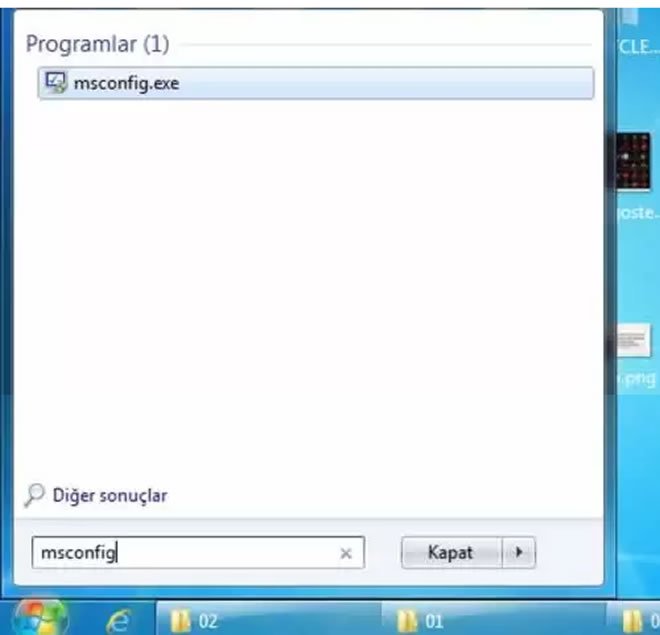
The first option that comes to mind to speed up computer startup should be removing unnecessary startup programs. To close programs that open when the computer starts, we use the msconfig.exe program built into Windows. To reach msconfig, type msconfig into the search box in the start menu. Double-click the msconfig.exe file shown above.

A window called System Configuration will open. From here, go to the Startup tab. In this section you’ll see the programs that automatically start running when the computer boots up. Some of these are files belonging to drivers that came with the computer (for example the Realtek audio driver or the NVIDIA graphics driver), while others belong to programs we installed later.
In this section, if the checkboxes to the left of the programs are checked, it means they’re actively running. To speed up Windows startup, we should uncheck the ones we consider unnecessary.
Our recommendation is, if you have antivirus software installed, leave no checkbox checked other than the antivirus. This way the antivirus will start automatically at Windows startup, and we’ll have sped up Windows startup without compromising system security.
Impact of Startup Programs
Closing unnecessary programs that start automatically at Windows startup noticeably shortens boot time.
SSD Speed Difference
SSDs can speed up operating system boot time by several times compared to HDDs.
Stopping Unnecessary Services
Preventing unused Windows services from running at startup allows system resources to be used more efficiently during boot.
2- Using an SSD Instead of an HDD to Speed Up Windows Startup

We can use an SSD instead of an HDD to speed up the computer’s startup. HDD hard disks, by their structure, are similar to a CD in that they write information magnetically onto a disk; while the disk spins at high speed, a read head reads this information — just like a record player. Their read speeds are limited. Also, on this type of hard disk, over time files get scattered into different fragmented locations, so read speed will slow down after a while. If system memory is insufficient, they may also be used as virtual memory, which further slows down data read speed.

SSD hard disks, on the other hand, have no magnetic disk or read head. Their working principle is similar to RAM memory, and they operate much faster. Consequently, computers with SSD hard disks also have a noticeably faster startup time.
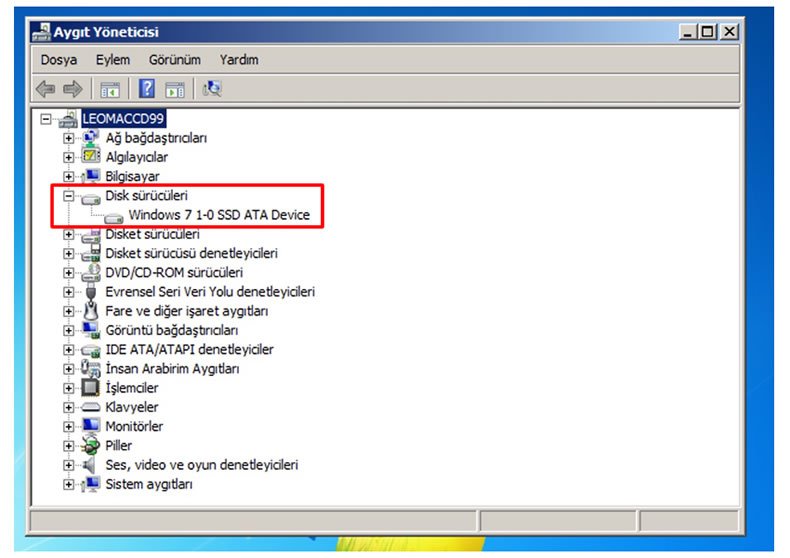
Whether your computer has an HDD or SSD hard disk:
You can check via Right-click My Computer > Properties > Device Manager menu. (The area outlined in red in the image above.)
If your computer has an HDD hard disk, you can upgrade to an SSD. Since hard disks are removable hardware, you can remove the HDD and mount an SSD in its place. You can do this yourself following videos on the internet, or have it done at a computer repair shop. You can even use both hard disks together and increase your total storage space.
Tip: If you’re a laptop user, you can remove the DVD drive and install your existing hard disk in its place, giving you two hard disk bays. Considering that DVD drives aren’t used much anymore, this is a very sensible solution.
SEE: How to Add a Second Hard Disk to Laptops
3- Disabling Some Services That Run at Startup

To speed up Windows startup (this is the same in Windows 7, Windows 8.1, and Windows 10), it’s possible to speed up the computer’s boot time by disabling some services that run automatically at startup, or by preventing them from starting automatically.
To access these services, type services.msc into the search box in the Start menu and click on the file shown above.
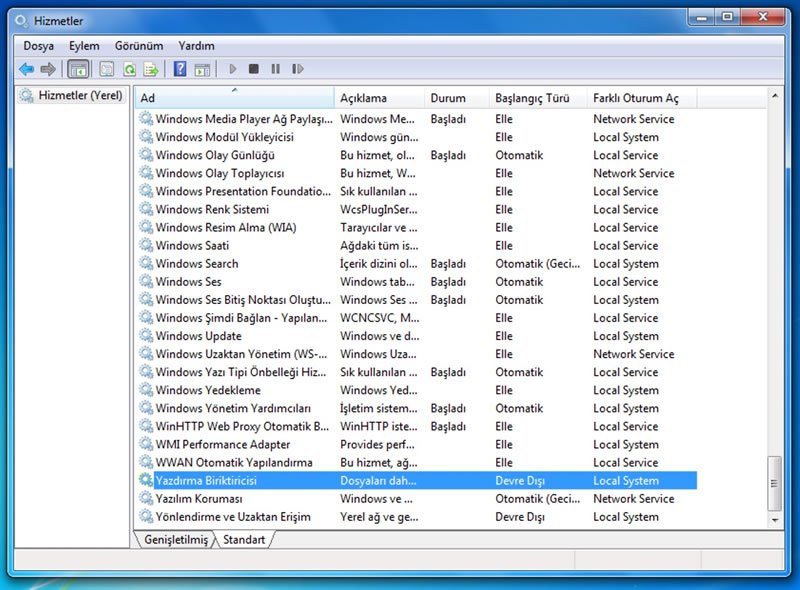
A window like the one above will appear. If it doesn’t, your system files may have been damaged, probably by a virus. Viruses usually prevent you from reaching this window, because they also want to run at computer startup and add themselves to this list. They don’t want you to find and disable them.
You can double-click any services in this window that you consider unnecessary and change their “startup type” from automatic to “disabled” or “manual.”
The services you disable here will no longer run automatically at computer startup, so the computer’s boot time will speed up to some degree.
Which Services Can I Disable to Shorten Windows Startup Time?
Which services you disable or set to manual to speed up Windows startup is up to your computer knowledge. For example, if you don’t use a printer on the computer, you can disable the “PRINT SPOOLER” service. Or if you use your computer silently and say you have no business with music, video, and such, you can disable the “WINDOWS AUDIO” service. If you say you don’t care about visuals and just want it simple and fast, you can disable the “THEMES” service.
Some Windows Services You Can Turn Off
DHCP Client: If your computer doesn’t get an IP automatically, you can turn this off.
DNS Client: If there’s no DNS server on your local network, you can turn off this service.
Nvidia Driver Help Service: Nvidia’s help service. In our view, not something very necessary; you can turn it off.
Task Scheduler: If you don’t use the task scheduler, you can turn it off.
Wireless Zero Configuration: If you have no involvement with wireless networks (for example, if you’re a desktop PC user connecting to the internet with an ethernet cable), you can turn this off.
Portable Media Serial Number: This service reads your portable music player’s serial number. In our view, unnecessary.
Terminal Services: If no one accesses your computer remotely and you don’t use it either, turn it off.
Error Reporting Service: In our view, an unnecessary service.
Automatic Updates: If you don’t want Windows to update automatically, stop this.
Messenger: If you’re not connected to a Windows 2000 domain, stop this.
IMPORTANT WARNING: Disabling a service without knowing what it does, while trying to speed up Windows startup, can cause some features to stop working, prevent you from connecting to the internet, or lead to bigger problems. So, in the interest of shortening Windows startup time, don’t disable a service unless you’re sure what it does. If you say you’ll experiment anyway, that’s your choice too. Some things are learned through trial and error. But we’ll say it now: the responsibility isn’t ours 🙂
In this article, we covered what can be done to speed up Windows startup. We shared tips for speeding up startup on a Windows computer. We explained how to close programs that open when the computer starts. This information is the same for Windows 7, Windows 8.1, and Windows 10.
Related Questions
Every startup program consumes some processor and memory resources while the system is starting up. Preventing unnecessary programs from running at this stage allows the system to boot faster with fewer resources in use.
No, many programs can configure themselves to run at startup during installation without asking the user. This is why periodically reviewing the startup list with tools like msconfig makes these unnoticed programs visible.
Related Posts
 How to Calibrate a MacBook Battery? Battery Calibration
  HDD Partitioning and Merging Program EaseUS PM DOWNLOAD
  Best 5 CAD Software Programs for Furniture Design
  How Do We Delete Files That Won’t Delete on macOS
  Mac OS: Remove Video From Files to Shrink Their Size
  macOS Big Sur Parallels Desktop Internet Issue
  The 10 Best Ways to Speed Up Windows 10
  Mac OS – Cutting and Merging Video Without Downloading Software