

In this article, we’ll cover a problem encountered when installing versions like Parallels Desktop Business Edition v16.1.2-49151 and Parallels Desktop 16.01-48919 on the macOS Big Sur operating system, and its solution. If you installed Parallels Desktop without any issues, but your virtual machines show no network connection or can’t access the internet, read on.
If your Macbook, on macOS Big Sur, shows a Parallels Desktop network initialization failed warning, and your virtual machine has no network connection or the internet isn’t working, we can suggest 2 ways to fix this problem.
Way 1 for the Parallels Desktop Internet Issue
First, close the Parallels Desktop program, and make sure it’s not running. Then open a Finder window. From the menu at the top, click GO, then COMPUTER. In the window that opens, follow this path:
YOUR HARD DRIVE’S NAME //Library // Preferences // Parallels
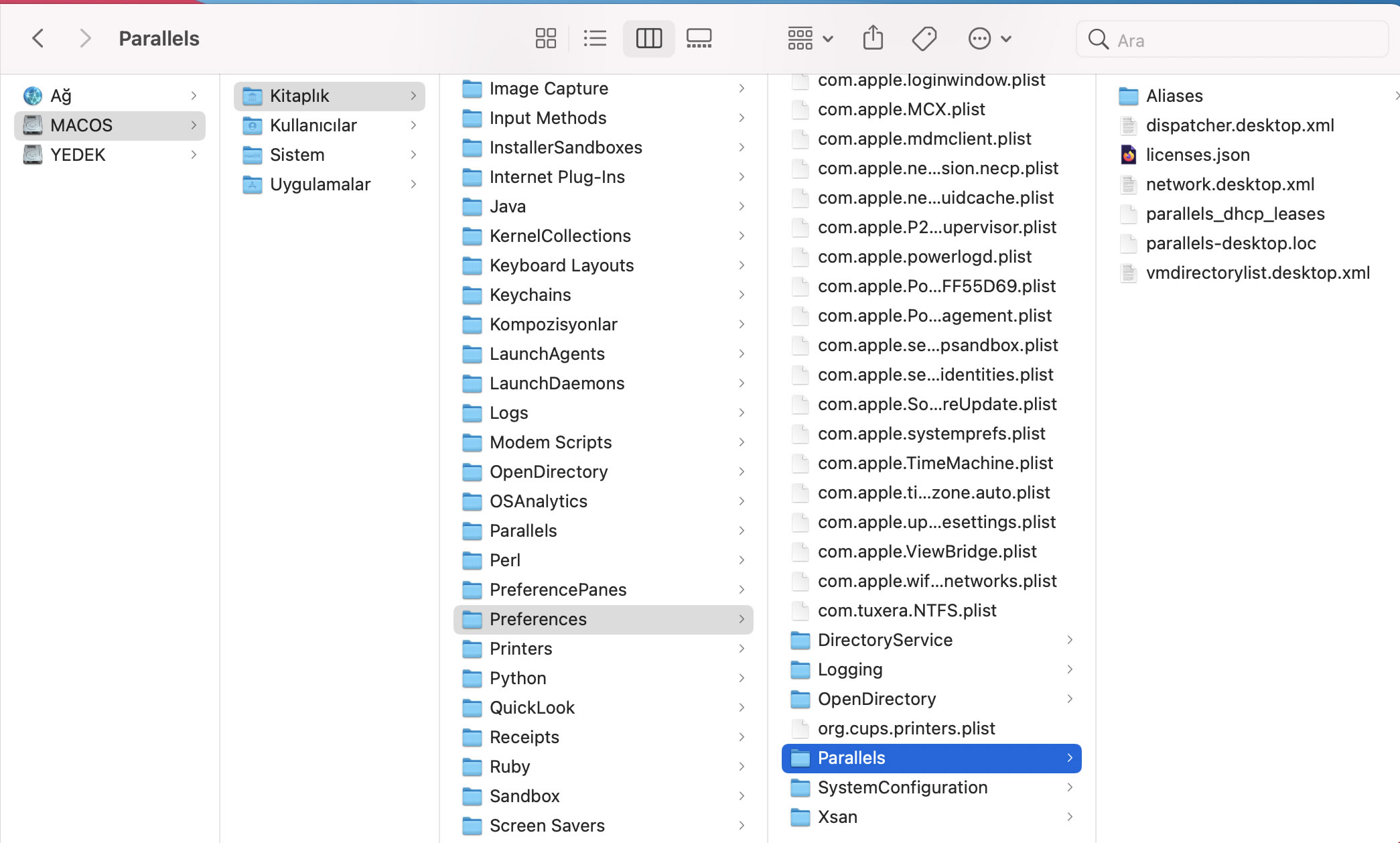
Right-click the folder named Parallels. After clicking Get Info, change the write permissions you’ll see at the bottom.
To do this, click the small lock icon in the bottom-right corner.

Now that you have write permission on the folder, right-click the Network.desktop.xml file inside it. Select Open With, and open it with the TextEdit program.
Find the line <UseKextless>1</UseKextless> and change the number in the middle to 0.
So the line should read: <UseKextless>0</UseKextless>
Close the file and exit. Open the Parallels Desktop program, and you’ll see that the internet issue has been resolved.
Way 2 for the Parallels Desktop Internet Issue
First, close the Parallels Desktop program. Then open Terminal (press command+space and type Terminal into Spotlight search).
Type the following into the Terminal window
sudo nano /Library/Preferences/Parallels/network.desktop.xml

It will ask for your password, enter it
<UseKextless>1</UseKextless>
Find this value (you can use command+f to find it)
And replace the value in the middle with 0, like this:
<UseKextless>0</UseKextless>
If this expression doesn’t exist
<ParallelsNetworkConfig …> </ParallelsNetworkConfig>
Place it between the tags
For example, I added mine to the very last line, like this:
</VirtualNetworks>
<UseKextless>0</UseKextless>
</ParallelsNetworkConfig>
In the end, your Terminal window should look like this:

Then press CTRL+X
It will ask if you want to confirm the changes
Enter Y
Press Enter and exit the terminal. Finally, launch the Parallels Desktop software and start your virtual machine. You’ll see that the network connection – internet issue has been resolved.
Related Posts
 Mac OS: Remove Video From Files to Shrink Their Size
  What Is Google One. Its Plans and Pricing
  What Is Computer RAM Memory? Types of RAM
  What to Watch for When Buying a Laptop?
  The Best Laptops of 2022
  Recording Screen Video on Mac OS X. Screen Capture Without Software
  Mac OS – Cutting and Merging Video Without Downloading Software
  Best 5 CAD Software Programs for Furniture Design