
Close Menu
  • MAKİNELER ve İMALAT
    • Tools & Equipment
    • Computer-Aided Drawing
    • CAD/CAM Education
    • CNC Machine Programming
    • Casting Technologies
    • Electrical & Electronics Technologies
    • Hydraulics & Pneumatics
    • Manufacturing Processes
    • Manufacturing Technologies
    • Occupational Safety
    • Mold & Die Design
    • Solid Modeling
    • Welding Technology
    • Machine Elements
    • Mechanical Trade Drawing
    • Materials Science
    • Automotive & Vehicle Technologies
    • Robotics Technologies
    • Health Technologies
    • Defense & Aerospace Technologies
    • Descriptive Geometry
    • Technical Drawing
    • Software & Hardware Technologies
    • Innovative Manufacturing Methods
  • TEKNOLOJİ ve YAŞAM
    • OTOMOBİLLER ve TAŞIT
      • Vehicle & Engine Knowledge
      • Safe Driving
      • Sürüş Destek Sistemleri
    • Genel Kültür
      • Movies & TV Shows
      • Görsel ve Grafik Sanat
      • Books & Literature
      • Music
      • Sports
      • History
      • History of Technology
    • GÜNDELİK YAŞAM TEKNOLOJİLERİ
    • Hobbies & Entertainment
    • Internet Technologies
    • Health
    • Mobile Technologies
Makine Eğitimi
  • Machines & Manufacturing
    Machine Elements
    Hydraulics & Pneumatics
    Technical Drawing
    Computer-Aided Design & Manufacturing
    Basic Manufacturing Processes
    Manufacturing Processes
    Industry Technologies
    Other Technical Courses
    Motion & Power Transmission
    Simple Machines
    Chains & Sprockets
    Shafts & Journals
    Gears
    Cams
    Couplings
    Belts & Pulleys
    Springs
    Bearings
    Keys
    Fastening Joining
    Retaining Rings
    Screws, Bolts & Nuts
    Cotter Pins
    Flanges
    Welding
    Rivets
    Pins & Bolts
    Washers
    Calculators
    Gear Ratio Calculator
    Spring Constant Calculator
    Belt Pulley Ratio Calculator
    Other Machine Elements
    Slides & Linear Guides
    Brakes
    Flywheels
    Clamps
    Shock Absorbers
    Gaskets & O-Rings
    Seals & Sealing Elements
    Hydraulics
    Introduction to Hydraulics & Principles
    Hydraulic Systems & Applications
    Accumulators
    Filters
    Motors
    Pumps
    Valves
    Pneumatics
    Introduction to Pneumatics & Principles
    Pneumatic Systems & Applications
    Pneumatic Circuit Components
    Valves
    Cylinders
    Silencers
    Motors
    Compressors
    Dryers
    Conditioning Units
    Common Topics & Maintenance
    Hydraulic & Pneumatic Maintenance
    Study Notes, Exams & Tests
    Technical Drawing
    Introduction to Technical Drawing
    Geometric Drawings
    Perspective & Projection
    Orthographic Views
    Dimensioning
    Sectioning
    Assembly & Detail Drawings
    Tolerances
    Surface Finish Symbols
    Mechanical Engineering Drawing
    Screws, Bolts & Nuts
    Pulley Drawings
    Gear Drawings
    Shafts & Journals
    Bearing Drawings
    Pins & Bolts
    Spring Drawings
    Welds in Technical Drawing
    Washers
    Cotter Pins
    Technical Drawing Exercises
    Mechanical Drawing Exercises
    Gear Exercises
    View Extraction Exercises
    Pulley Exercises
    Pin & Bolt Exercises
    Threaded Fastening Exercises
    Descriptive Geometry
    Computer-Aided Drawing
    AutoCAD Drawing Lessons
    Computer-Aided Drawing Exams
    Solid Modeling & Animation
    Solid Model Drawing Files
    Solid Model Assembly Examples
    Solid Model Drawing Lessons
    3D CAD Software Reviews
    Solid Modeling Exercises
    CNC Programming
    CAM
    Measurement & Inspection
    Dial Indicators
    Calipers
    Gauges
    Micrometers
    Materials Science
    Steels
    Cast Iron
    Aluminum
    Plastics
    Material Testing & Hardness Measurement
    Occupational Safety
    Workshop Safety
    Safety When Working With Electricity
    Machine Safety Rules
    Hand Operations
    Filing
    Marking
    Cutting Operations
    Reaming
    Tapping
    Threading With a Die
    Drill Bit Sharpening
    Working With Machines
    Basic Turning Operations
    Basic Milling Operations
    Shaper Machine
    Machining
    Turning
    Milling
    Grinding
    Innovative Manufacturing Methods
    EDM (Electrical Discharge Machining)
    Laser Machining
    Waterjet Machining
    3D Printing
    3D Scanners
    Welding
    Rolling
    Casting
    Mold & Die Design
    Mechanical & Hydraulic Presses
    Blanking & Piercing Dies
    Bending Dies
    Drawing Dies
    Plastic Injection Molds
    Extrusion Dies
    Compound Dies
    Progressive Dies
    Blow Molds
    Spinning Dies
    Spray Molds
    Manufacturing of Machine Parts
    Automotive & Vehicle Technologies
    Motor Vehicle Manufacturing
    Raw Material Production
    History of Technology
    Health & Medical Technologies
    Defense & Aerospace
    Robotics Technologies
    Software & Hardware Technologies
    Mechanics - Strength of Materials
    Physics Topics
  • Technology & Life
    Hobbies & Entertainment
    Sports
    Music
    Vehicle & Engine Knowledge
    Vehicle Maintenance & Repair
    Safe Driving
    Driver Assistance Systems
    History
    Movies & TV Shows
    Books & Literature
    Computers & Internet
    Computer Tips
    Software Reviews
    Hardware & Peripherals
    Practical & Safe Internet Use
    Visual & Graphic Art
    Mobile Technologies
    Travel
    Science
    Health
    First Aid Knowledge
    Everyday Technologies
Makine Eğitimi
Home»Software & Hardware Technologies»Changing the Mac OS X Screenshot Save Location
30 August 2026Updated:30 August 2026

Changing the Mac OS X Screenshot Save Location

Changing the Mac OS X Screenshot Save Location

In this article in our Mac Tips section, we’ll look at how to change the save location for Mac OS X screenshots. In this section, prepared for those asking “how do we change where Macbook screenshots are saved,” we’ll learn how to save screenshots to the location of our choice using a few commands.

  • Changing the Mac OS X Screenshot Save Location
    • How Do We Change Where Macbook Screenshots Are Saved
  • If You’re Using MACOS MOJAVE OR LATER (CATALINA)

IMPORTANT NOTE:
If you’re using MACOS MOJAVE or later (CATALINA-BIG SUR), CLICK HERE

Changing the Mac OS X Screenshot Save Location

Taking a screenshot is something especially those working in web or graphic design need often. When a web design issue occurs, an error message is encountered, or a detail about the current state of a design needs to be shared, a screenshot of the screen at that moment is captured and saved. It’s usually sent to a coworker using a program like Telegram, and ideas are shared.

We explained in a previous article that on Mac OS X you can take a screenshot without needing any third-party software. With a few key combinations, you can capture a screenshot of part of the screen or the entire screen.

See the related article: Taking a screenshot on Mac OS X

Taking a screenshot on a Macbook Pro or Macbook Air running Mac OS X is easy and comes down to a few key combinations. So, where are screenshots saved on Mac OS X?

By default (the setting that comes with installation), Mac OS X saves screenshots to the desktop. However, it’s obvious that when working with a lot of screenshots, the desktop can become quite cluttered. That’s why some Mac users may want to change the screenshot save location.

How Do We Change Where Macbook Screenshots Are Saved

First, type Terminal.app into the search box (Spotlight Search) and open Terminal.

The Terminal program’s interface will look like the one shown below:
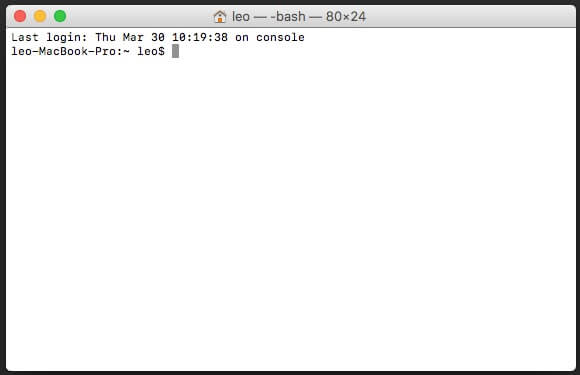
changing the mac os x screenshot save location

Type the following line into the Terminal window you opened and press enter:

defaults write com.apple.screencapture location ~/Desktop/Screenshots

You can copy the code above with Command+C and paste it into the Terminal program with Command+V.

Here, we set a folder named Screenshots on the desktop as the screenshot save location. You can change this if you prefer. For example, if you want the screenshot save location to be a “Documents/screenshots” folder, the code you’d write is:

defaults write com.apple.screencapture location~/Documents/screenshots

Finally, paste the following code and press enter:

killall SystemUIServer

After entering this code as well, you’re done with the Terminal program — you can close it.
If you did all the steps correctly, screenshots will now start being saved to the location of your choice.

If You’re Using MACOS MOJAVE OR LATER (CATALINA)

With recent updates, macOS Mojave and later added an option that lets you easily change the screenshot save location.
To do this, press the key combination SHIFT+CMD+5, then click the OPTIONS section in the mini bar that opens.


In this article, we covered how to change the Mac OS X screenshot save location. We saw how to save screenshots to the folder of our choice. Looking forward to seeing you in the next Mac Tips articles.

Related Posts
differences between usb 2.0 3.0 and 3.1 What to Look for When Buying a Flash Drive laptop solidworks ekranı ve katı model Advantages of Computer-Aided Design parallels desktop internet issue solution macOS Big Sur Parallels Desktop Internet Issue macos screenshot key combination Taking a Screenshot on Mac OS X. Screenshot Without Software Why Does a Laptop Run Noisy? Why Does a Laptop Run Noisy? Suggested Solutions laptop solidworks screen and solid model The Best Free Open-Source CAD Software taking a screenshot with Snagit Download Snagit: Screenshot Capture Software Download What to Watch for When Buying a Laptop? What to Watch for When Buying a Laptop?
Mac OS X Püf Noktaları - İpuçları
Share. Facebook Twitter WhatsApp Tumblr Email Telegram Copy Link

Leave A Reply Cancel Reply


Coilover (Coil Spring Shock Absorber) Advantages and Disadvantages
How to Choose Engine Oil
  • Contact
  • Terms of Service
  • Privacy & Cookie Policy

Type above and press Enter to search. Press Esc to cancel.