

If you’re wondering how to extend your laptop’s battery life, keep reading. Here are the best ways to make your laptop’s battery last longer:
Ways to Extend Laptop Battery Life
Switch Your Power Profile to Power Saver
Windows laptops come with the option to change the power profile in the Power & Sleep Settings menu. Select Battery Saver mode to optimize your laptop for efficiency rather than performance. This will be helpful for extending the laptop’s battery life.
If you’re not dealing with applications that require heavy processing power, like graphic design or video processing, you can try switching to low-power or battery saver mode.
This will likely limit how long the screen stays on, dim the screen when it detects idling, and put the hard drive to sleep during extended periods of inactivity.
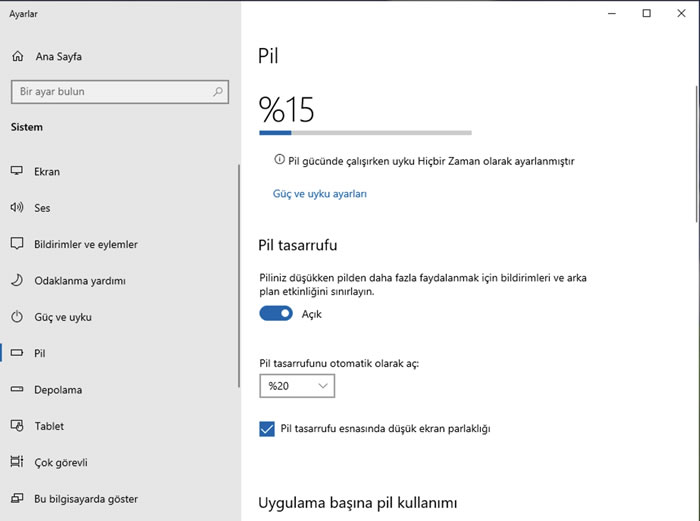
For example, if you’re running an up-to-date OS on a 2016 or later Macbook model, Low Power Mode works similarly to the same-named feature on iPhone, saving power by automatically slowing down the processor and dimming the screen. You can access this option from System Preferences > Battery.
Keep Screen Brightness at an Optimal Level
One of the ways to increase a laptop’s battery life is to lower the screen brightness. A bright, high-resolution screen is a major factor in draining your laptop’s battery. While you can’t do much about the resolution after purchase, you can reduce the brightness so it uses as little power as possible. This will make the laptop more dull, so you may not enjoy it as much for gaming or watching movies. It can also make the screen harder to see in bright environments (especially outdoors).
Turn Off Keyboard Backlighting If Unnecessary
If you want your laptop’s battery to last longer, you can also try turning off the keyboard backlighting. Keyboard lighting is really useful for typing in the dark, but it also needs power, which means it’s another source of battery drain. If battery life matters, do your best to go without backlighting and turn it off.
Turn Off Wireless Networking When Not in Use
When you’re not using a wireless network connection, turning off your laptop’s Wi-Fi can also contribute to making the battery last longer. Even when your computer isn’t actively connected to a wireless network, it uses energy searching for available networks. Turn off Wi-Fi from the Wi-Fi menu bar icon or the Network preference pane.
We mentioned wireless networks, but since Bluetooth creates the same effect here, you might also want to turn off Bluetooth if you’re not using it.
Videos Playing in the Background Also Use Energy
Some of us may be listening to music through YouTube clips playing in the background while we work. We should remind you here that even in the background, playing video will consume energy. Instead, you might prefer listening to music with an app like YouTube Music or Spotify. If you want to increase your laptop’s battery life, this can help too.
Keeping the videos you watch at high resolution is also one of the factors that increases energy consumption. Don’t watch videos in high resolution if you don’t need to. This will both reduce internet data exchange and prevent the processor from working harder, reducing its power needs.
Remove External Devices You Don’t Need
All external devices draw their power from your laptop, whether they’re just powered by it or use it to charge their own internal batteries.
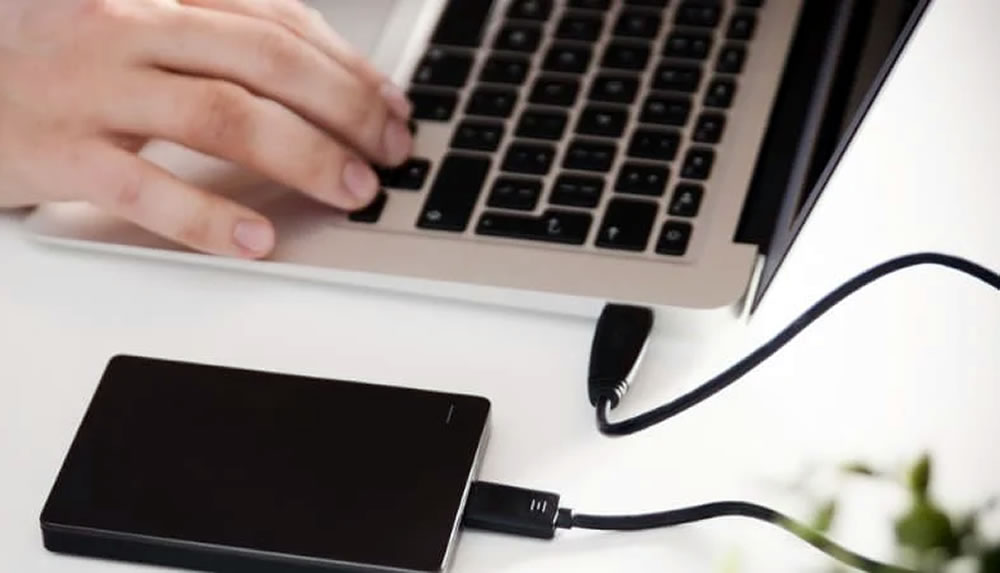
Disconnect peripherals, including inserted memory cards. Even when you’re not actively using a device, your Mac checks various ports for services a device might need. Your Mac also supplies power through many ports, so disconnecting, for example, USB-powered external drives can extend battery life.
If we’re going to say something specific to Macbook computers;
To extend your Mac’s battery, turn off services you’re not using, like Wi-Fi, Bluetooth, or AirPlay. Also, go to System Preferences > Energy Saver, and enable settings to turn off the display after a certain interval, or put hard drives to sleep whenever possible. You can also try Battery Calibration.
See the related article: How to Calibrate a Macbook Battery
Close Background Apps
One of the ways to extend a laptop’s battery life is to close apps running in the background. Even apps you’re not using can drain the battery if they’re left open in the background. So close unnecessary apps.
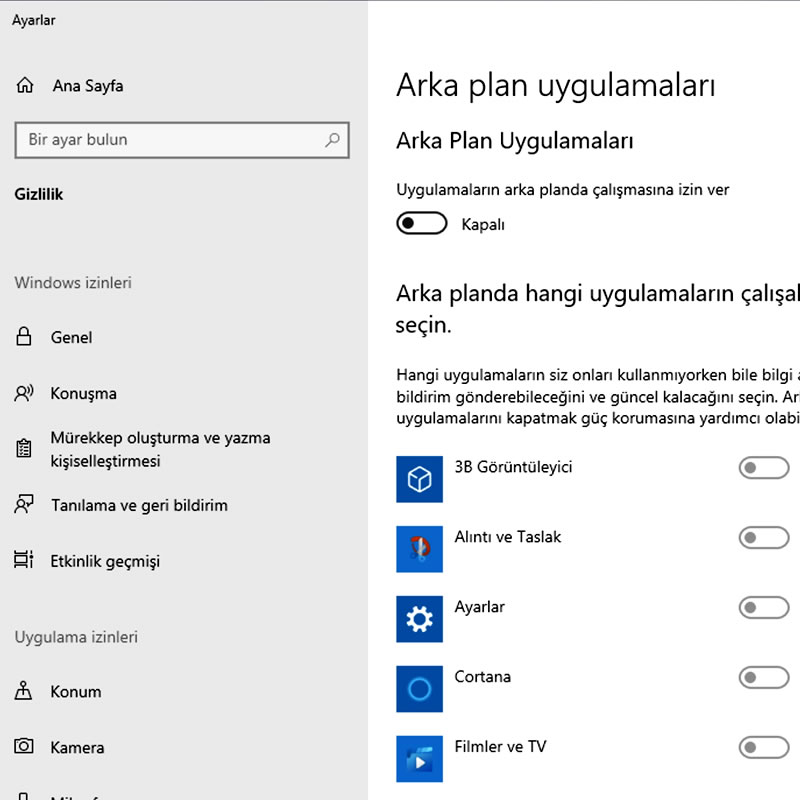
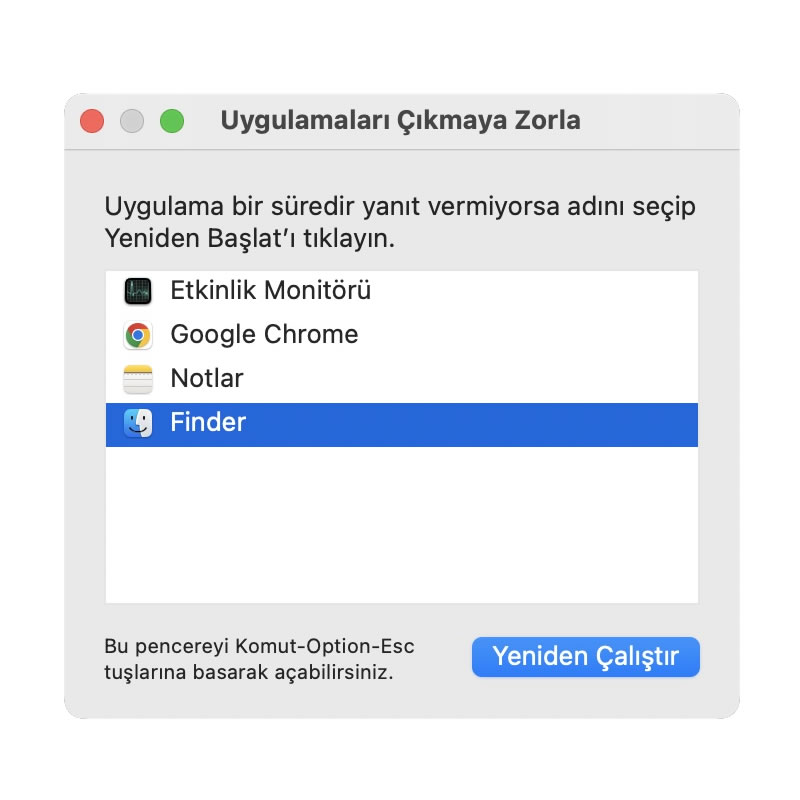
On Windows, you can view and close apps running in the background from Settings > Privacy > Background apps. On macOS, you can right-click an app’s icon in the dock and select “Quit,” or click the Apple icon in the top-left corner and manage them from the “Force Quit” window.
Keep Your Computer Cool
Batteries stay more efficient and last longer when kept at or slightly below room temperature, so do your best to prevent your laptop from overheating. This means making sure you don’t use it in very hot rooms or in direct sunlight, and ideally making sure your laptop has plenty of ventilation so it can adequately cool its components and prevent overheating.
Use an Ad Blocker in Your Browser
It might seem unrelated, but blocking ads can also help extend battery life. While browsing the internet, ads on some websites (especially movie-streaming sites) show animated and video ads. These keep the processor busy to a certain degree. Of course, the processor dealing with these means it uses extra energy. By using ad blockers, you can save energy while your laptop runs on battery.
Today, many internet browsers offer the ability to block ads. Opera browser even has a built-in ad blocker. If you use Chrome, you can add an ad-blocking extension to your browser by clicking this link and typing Adblock into the search box.
Turn Off or Hibernate Your Computer When Not in Use
If you’re not using your laptop, turn it off, or set it to hibernate after a short period of inactivity. It drains battery life even while sitting idle; the screen being off doesn’t mean its charge isn’t slowly draining. Turn it off once you’re done using it.
In this article, we tried to give some useful information for those wondering “how to extend laptop battery life?” Hope to see you in new articles.
Charge Cycle Lifespan
Laptop lithium-ion batteries typically retain most of their original capacity after 300-500 full charge cycles.
Effect of Screen Brightness
Lowering screen brightness to 50% can noticeably extend battery life; the screen is usually the highest-consuming component.
Power Plan Settings
Power-saving modes in the operating system can increase battery life by 20-30% by limiting background apps.
Related Questions
This mode reduces total energy consumption by slowing down the processor, reducing screen brightness, and putting idle components to sleep. By sacrificing a bit of performance, the battery becomes usable for longer.
If you’re not doing intensive tasks like video editing, the processor doesn’t need to run at full power. Low power mode cuts back this excess performance, saving battery in everyday use.
Related Posts
 Download Snagit: Screenshot Capture Software Download
 HDD Partitioning and Merging Program EaseUS PM DOWNLOAD
 What to Watch for When Buying a Laptop?
 Software Used in Motion Capture (Mocap)
 Tips for Speeding Up Windows Startup
 The Best Free Open-Source CAD Software
 Advantages of Computer-Aided Design
 Motion Capture Technology