
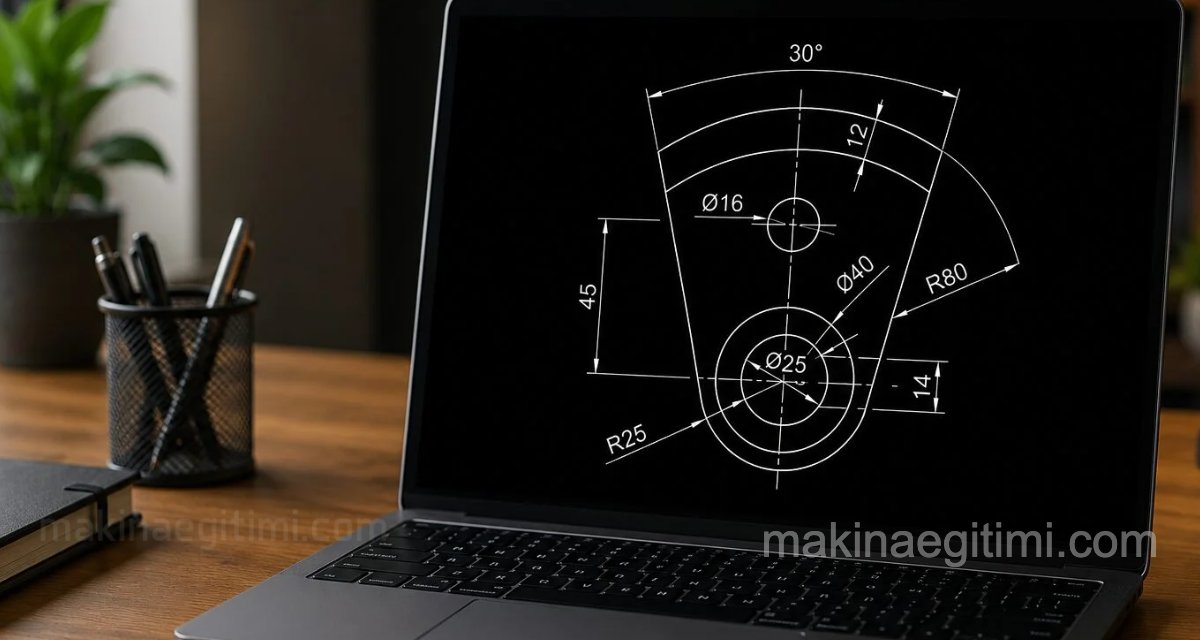
In our technical drawing examples section, we provide drawing exercises you can use for dimensioning practice, AutoCAD training, SolidWorks training, CAD/CAM exercises, and exam question preparation. We hope they’re useful for your work.

Even drawings that seem complicated will become easier with enough practice — try drawing these examples to test your skills and drawing speed.

Another drawing example that can be simplified using the MIRROR command

Some drawings that look a bit more complex can be simplified with the MIRROR command, thanks to their symmetry.

Drawings suitable for exercises and exam questions at technical universities and vocational/technical high schools

Example drawings you can use when explaining dimensioning rules in technical drawing

Above, we see an entry-level example you can use for your AutoCAD/SolidWorks practice.

Also ideal examples for traditional hand-drawn technical drawing practice.

Another dimensioned technical drawing exercise

Another technical drawing example you can draw using AutoCAD commands like CIRCLE, ARC, FILLET, and MIRROR

Another example you can use for toolpath-generation exercises in your CAD/CAM work

Above we see an example related to the AutoCAD commands CIRCLE, OFFSET, TRIM, and ARRAY.

Dimensioned drawing examples that teachers can also use when preparing exams

You can use these dimensioned 2D drawings to improve your AutoCAD skills.

2D drawings you can use in technical drawing software training, such as AutoCAD and SolidWorks

Remember, the way to draw quickly — especially in CAD software — is through plenty of practice. After a while, you’ll develop different techniques for drawing fast. You’ll notice you can draw things in a few minutes that once looked difficult.

As the number of examples you draw increases, you’ll notice you’re developing your drawing logic and drawing faster.

See how long it takes you to draw these technical drawing examples and test yourself

Drawing examples that can be especially useful for students at technical education faculties, engineering faculties, and technical high schools

Ideal examples for improving your AutoCAD drawing skills

An example part where a revolved section view can be drawn

The image above shows an exercise involving the CIRCLE, TRIM, and MIRROR commands.

You can also download the example drawings together as a PDF.

You can download the DWG files of these drawings, which open in AutoCAD.

Example drawings that technical teachers can use when preparing exams

Related Posts
 Introduction to Computer-Aided Drawing – Exercise Drawings
 A Few Tricks for Productivity With AutoCAD
 12 Performance Settings for a Faster AutoCAD
 AutoCAD Drawing Exercise – Circle-Tangent-Trim-Fillet
 2D Sketch Drawing Examples – Part 4
 AutoCAD Object Snap (OSNAP) Options and Usage
 AutoCAD Drawing Exercise 4 – Trim, Offset, Array
 AutoCAD Example Drawings 2 – Complex Drawings