
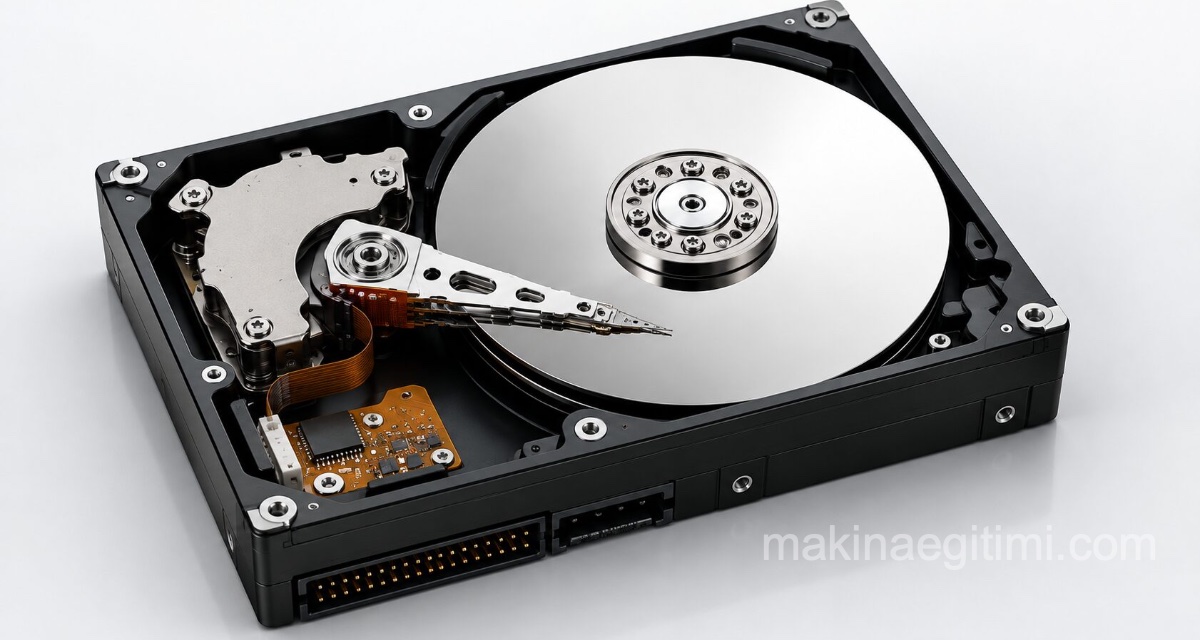
Download EaseUS Partition Master free. Hard disk partitioning, formatting, and merging program download. Resizing an HDD drive. Free HDD partitioning program for PC Windows, EaseUS PM
EaseUS PM. HDD Partitioning, Formatting, Merging Program
EaseUS Partition Master Free is a hard disk management program that can be used on computers running Windows and macOS and offers quite useful features. You can use the program for free.
Program details
Version: Free
Download size: 36 MB
Language: English
System: Windows
DOWNLOAD THE PROGRAM

When we open the program, an interface like this greets us. By right-clicking the disk we want to work on, or from the “operations” bar on the left, we can perform operations such as HDD partitioning, HDD formatting, merging, renaming a partition, or partition cloning.
Partitioning a Hard Disk (Creating a Partition) with EaseUS PM
Let’s say your computer’s hard disk is set up as a single partition. (Drive C) And you want to split the hard disk and create a D drive. But since your system is currently installed on drive C, and all your system files, documents, desktop, etc. are all on the same drive, partitioning this hard disk seems risky to you. Or you don’t know how to do it. This is exactly where the EaseUS program comes to our rescue.

With the EaseUS HDD partitioning program, we can split our disk, which is a single partition, into two or more separate partitions without damaging the system.

When we select our drive in the program interface and click on “Resize/Move partition,” a window like the one above opens. By grabbing the section we’ve indicated with the arrow and dragging it left, we can change the size of the disk. When we do this, the numbers shown in the boxes in the middle (unallocated space before the operation, partition size, unallocated space after the operation) will also change.

For example, as shown above, when we shrink drive C’s size to 86.50 GB, we can see that 41.16 GB of Unallocated space is created right next to it, as shown.
After doing all this, when we press the OK button, the program doesn’t immediately try to format or partition the drive. So you can press the OK button without needing to panic. Because at this stage, the program is actually just building a list of the operations we’ll perform on the drive. In other words, we can still cancel the operation afterward.

When we press the OK button, you’ll see a section on the left side of the interface (shown with the red arrow) called “Pending operations.” At this stage, if you press the Apply button (shown with the green arrow), the program will start working to carry out the task you gave it. If you press Undo instead of Apply, it will undo the operation.
Important note: When an Unallocated space is created as shown above, you need to format this space. If you press APPLY without formatting it, once the system restarts, you won’t see this unallocated space as part of the disk. It will essentially look like it’s disappeared. It will just look like drive C’s size has shrunk.
If this happens to you, still don’t panic — if you run the program again, you can see the unallocated space and perform the formatting step you forgot this time.
If the task you’ve given requires the program to work on a partition containing system files, the program will restart the system and carry out the task you gave it on a black screen while restarting.
Evaluation of the EaseUS PM Free Hard Disk Management Program
We’ve tried to give information about how to use the EaseUS Partition Master HDD formatting program, whose download link we provided at the start of this article. EaseUS is quite functional and easy to use, handling tasks like HDD formatting, HDD partitioning, and HDD merging without putting your system at risk, and it can also handle a number of extra operations without issue (such as disk cloning and changing the disk’s formatting type).
When we tried the HDD partitioning process with EaseUS PM, it carried out the operation successfully and didn’t damage the system files or the system’s ability to boot, which won us over. It’s also nice that it’s a free program. The paid versions of the program offer extra features for professional users. But from what we’ve seen, the free version also meets our needs. If you’re looking for an HDD formatting program, it’s worth giving this one a try.
Related Posts
 What Is a Solid State Drive (SSD)? Advantages of SSD Drives
 Download Snagit: Screenshot Capture Software Download
 Mac OS – Cutting and Merging Video Without Downloading Software
 The 10 Best Ways to Speed Up Windows 10
 Mac OS: Remove Video From Files to Shrink Their Size
 Best Jewelry Design Programs
 Advantages of Computer-Aided Design
 macOS Big Sur Parallels Desktop Internet Issue