
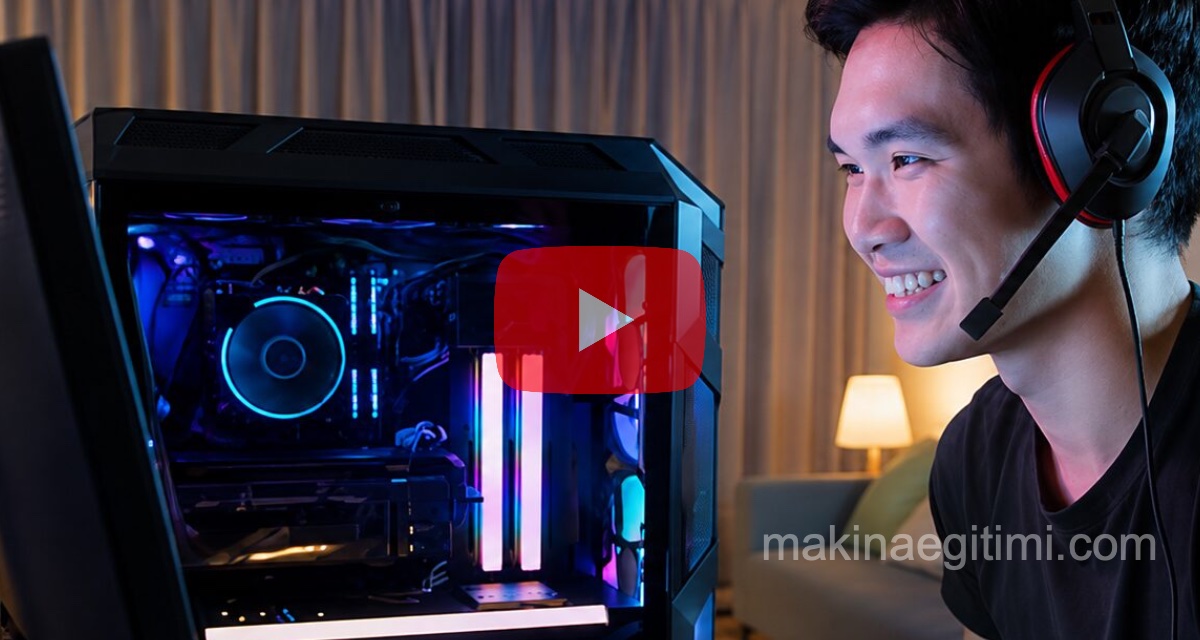
In this article, we’ll share some settings and tips for increasing FPS in games on a laptop or gaming PC. Before we look at how to increase FPS in games, let’s look at what FPS is, and why low FPS is undesirable.
FPS is the number of frames displayed per second in videos or games. A low FPS can make games look jittery or blurry. Increasing FPS in games means games will look better and run more smoothly on your PC.
While some fixes and tips take just seconds to apply, getting others right can take a bit more time. Whatever your skill level or amount of free time, below is a list of tips that will help increase FPS on your gaming PC.
Lowering Graphics Settings
Turning down heavy graphics effects like shadows and reflections can noticeably increase FPS.
Graphics Card Driver Update
Up-to-date GPU drivers can provide a noticeable performance boost thanks to game optimizations.
Effect of Disabling V-Sync
Turning off V-Sync increases screen-tearing risk, but generally leads to a noticeable FPS increase.
Recommendations for Increasing FPS in PC Games
Here’s what’s recommended to increase FPS in games:
The simplest way to get the most out of your graphics card and increase FPS is to update your graphics card drivers. Updating drivers ensures the card uses the latest software, which brings new features, performance updates, and other optimizations along with it.
If you use an Nvidia graphics card, updating Nvidia drivers is especially easy with the dedicated software GeForce Experience, which streamlines the process.
Optimize Your Game’s Settings to Increase FPS
If you’re trying to get a specific game to run smoothly, look for performance-level options within the game. Look for settings like Draw Distance, Texture Quality, and Shadow Depth. By lowering these, you’re likely to increase FPS.
Related video: NVIDIA GeForce Setup and Increasing FPS in Games (FPS SETTINGS)
Additionally, running the game at a lower resolution increases FPS. The higher the resolution, the more your graphics card has to do at any given moment. By lowering it, you can focus on a higher-quality FPS level, with a closer-up view of the game you’re playing.
Dedicated tools like GeForce Experience or AMD Adrenalin can also make these adjustments, and since they’re designed for the specific graphics card you’re using, they can sometimes do it more efficiently.
Enable Game Mode
One recommended fix for low FPS in games is enabling Game Mode. Windows 10 and later have a dedicated Game Mode that automatically helps games run faster and more smoothly. It should be enabled by default every time you launch a game, prioritizing resources and disabling background activities, but if it isn’t, you can go to Settings > Gaming, and check whether Game Mode is on to make sure it’s always running.
Related video: Disabling Game Mode and the Game Bar on Windows 10
When active, Game Mode saves you the trouble of making many adjustments yourself, as Windows automatically optimizes itself for playing games.
Defragment Your Hard Drive
Data fragmentation means data is spread across different sectors of a hard drive; this makes it take longer for your computer to find the relevant files, leading to lower FPS.
By defragmenting a hard drive, files and data are moved more efficiently, giving you shorter load times and better FPS.
If your games are installed on a Solid State Drive (SSD), you don’t need to defragment your drive.
Close Other Apps and Programs
If you’re playing a game while other apps are open at the same time, this can reduce the amount of RAM available to the game, which can cause lower FPS and lower performance.
Even your web browser can consume a lot of memory, especially if you have a lot of open tabs, so it’s important to keep as many apps closed as possible while gaming.
Overclock Your Hardware
If you’d like to try more advanced methods to increase FPS in games, try overclocking your computer’s RAM or graphics card. Many methods are quite safe and are a good way to get more out of your existing hardware for free, but you need to be comfortable using your computer’s BIOS and editing some advanced settings.
Since some RAM and graphics cards may not be able to handle the stress, overclocking is never guaranteed to work, so it can be considered a risky option. However, if you’re eager to try, many users can gain significant advantages by changing internal settings.
Update Your BIOS
Most people don’t need to think about updating their computer’s BIOS, but it can help if they’re trying to get the best performance possible. The process involves updating the built-in software on your motherboard that ensures your whole PC runs correctly.
The process varies depending on the motherboard in question, but generally requires you to go to the motherboard manufacturer’s site and find your motherboard before downloading the update to a USB drive.
It may not make a difference in performance, but in some cases — especially when using a gaming motherboard — it can unlock more options for overclocking other components.
Caution: If your computer loses power during a BIOS update, your computer could become unusable.
Buy a New Graphics Card
If you’ve tried all the steps above and your PC still struggles to run games at the FPS you want, it might be time to get a new graphics card.
Do your research, and make sure you buy one compatible with the rest of your system. Keep in mind that if your system is getting old, you might feel more comfortable upgrading your entire setup along with the graphics card.
Upgrading laptop graphics cards is much harder, so you might need to buy a new laptop if all the other tips for increasing FPS in games don’t succeed.
Frequently Asked Questions
Related Questions
Manufacturers add game-specific optimizations and fix known performance issues with new drivers. An outdated driver may not be able to fully use the card’s actual power.
V-Sync limits FPS by locking the image to the screen’s refresh rate; turning it off removes this limit and the card renders frames as fast as it can. But this introduces the risk of a visual artifact called screen tearing.
Related Posts
 Tips for Speeding Up Windows Startup
  How to Extend Laptop Battery Life?
  Mac OS: Remove Video From Files to Shrink Their Size
  How to Calibrate a MacBook Battery? Battery Calibration
  macOS Big Sur Parallels Desktop Internet Issue
  Why Does a Laptop Run Noisy? Suggested Solutions
  Changing the Mac OS X Screenshot Save Location
  How Do We Delete Files That Won’t Delete on macOS